See where your disk went.
Silt scans a folder, draws where the space actually sits, and points at what is safe to clear. Nothing is ever deleted. Items you tick go to the Trash, after you have seen every path.
One-time payment, direct download.
Six steps, from full disk to the Trash.
Real app screens- 01 Choose
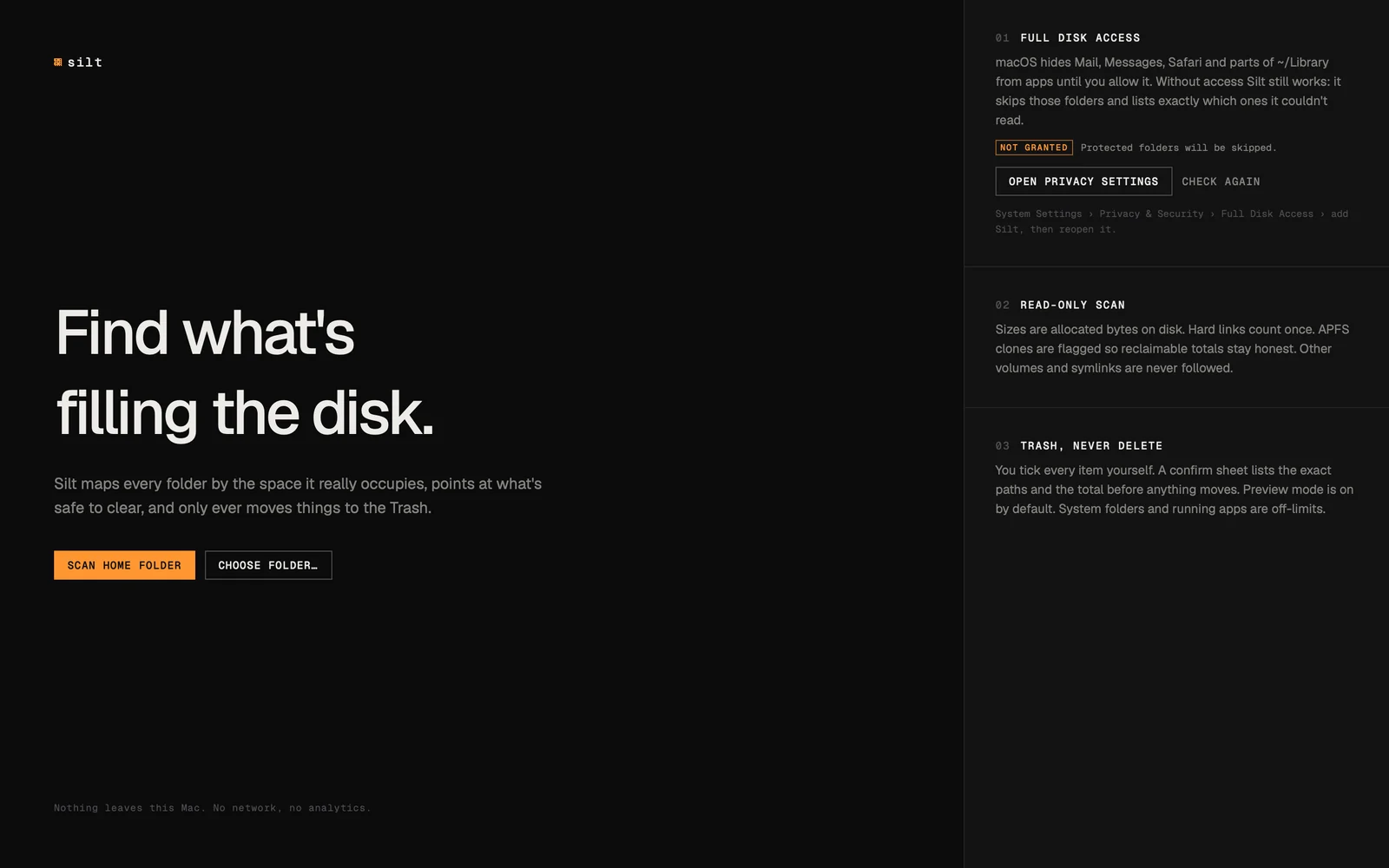
Pick a folder, or your whole home.
The start screen offers your home folder or any folder you choose. Full Disk Access is optional; without it, protected folders are skipped and listed.
- 02 Scan
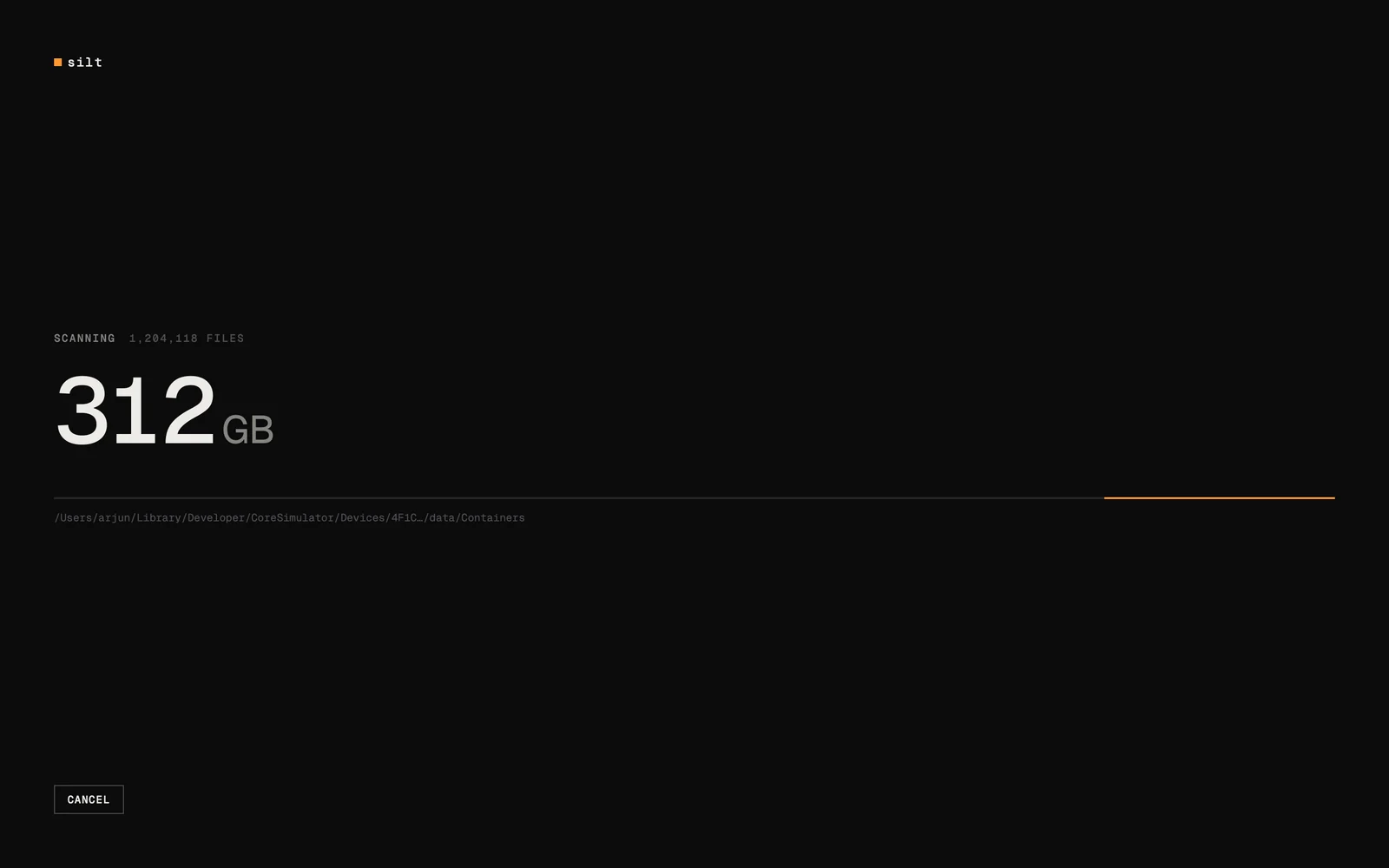
It counts what is really on disk.
Allocated bytes, hard links once, APFS clones by their private size. Symlinks are never followed and other volumes are skipped.
- 03 Map
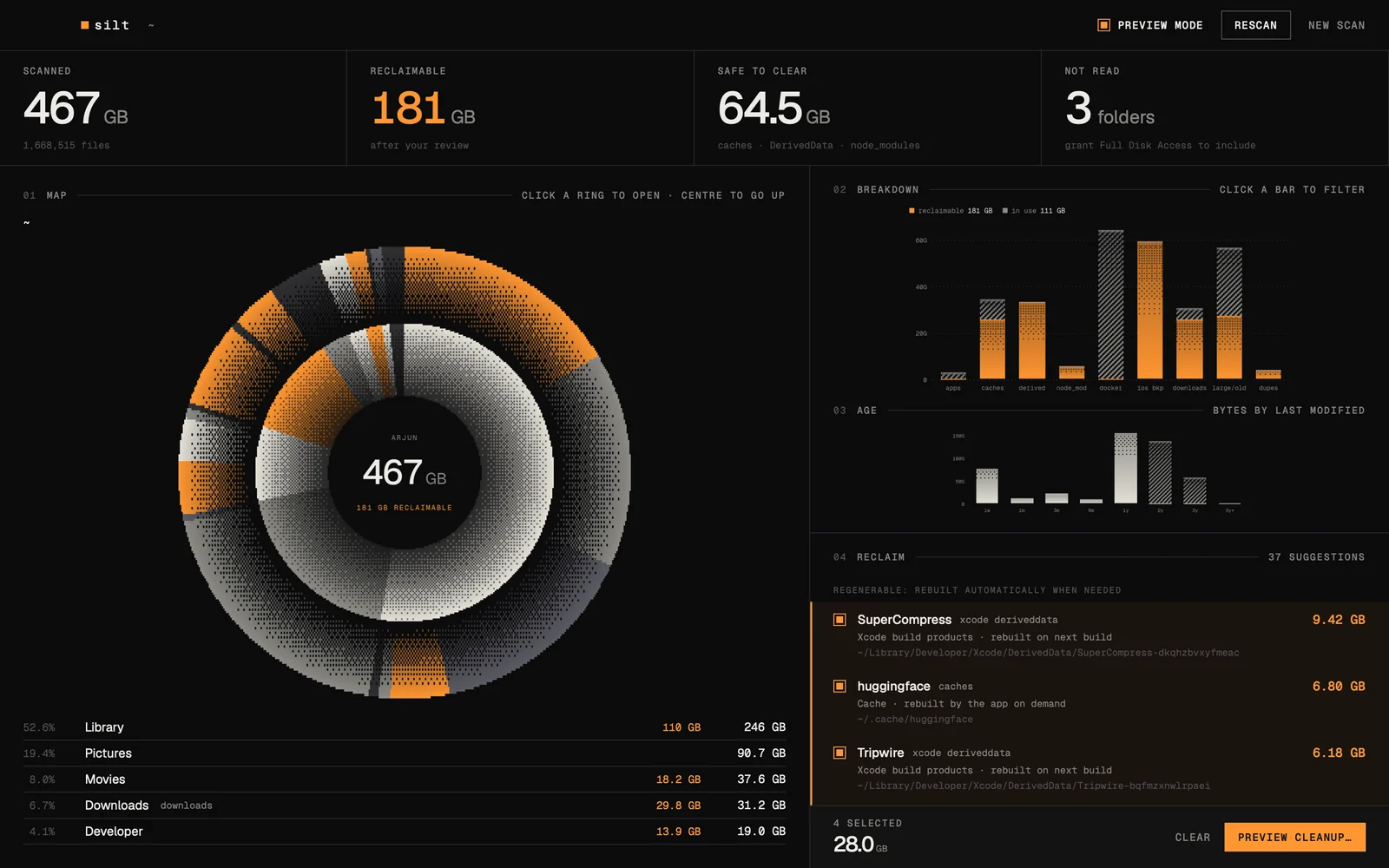
Read the map.
The inner ring is the folder you are in, the outer ring what each part holds. Orange marks a part that is at least half reclaimable. Click a wedge to go inside.
- 04 Narrow
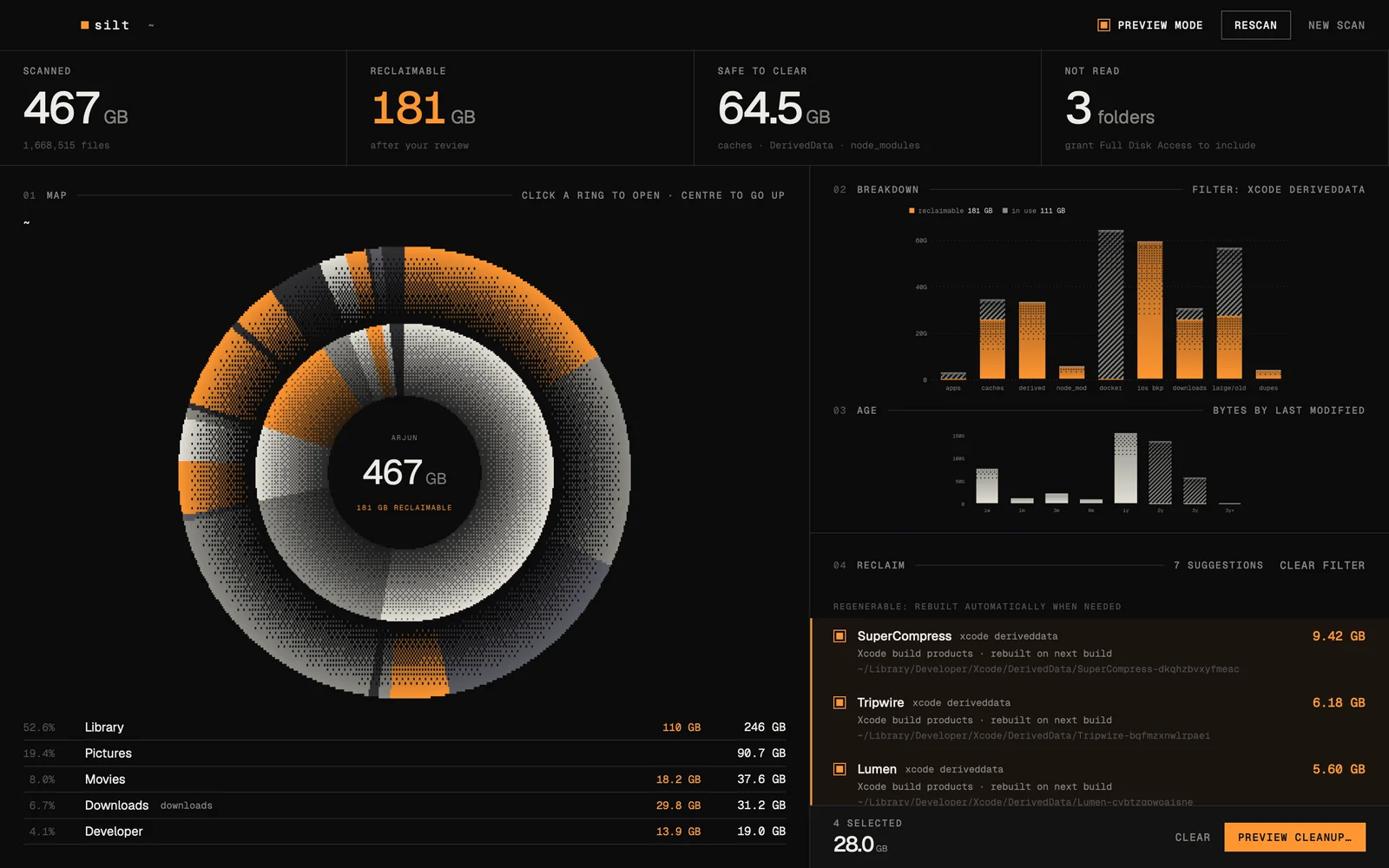
Narrow it by kind.
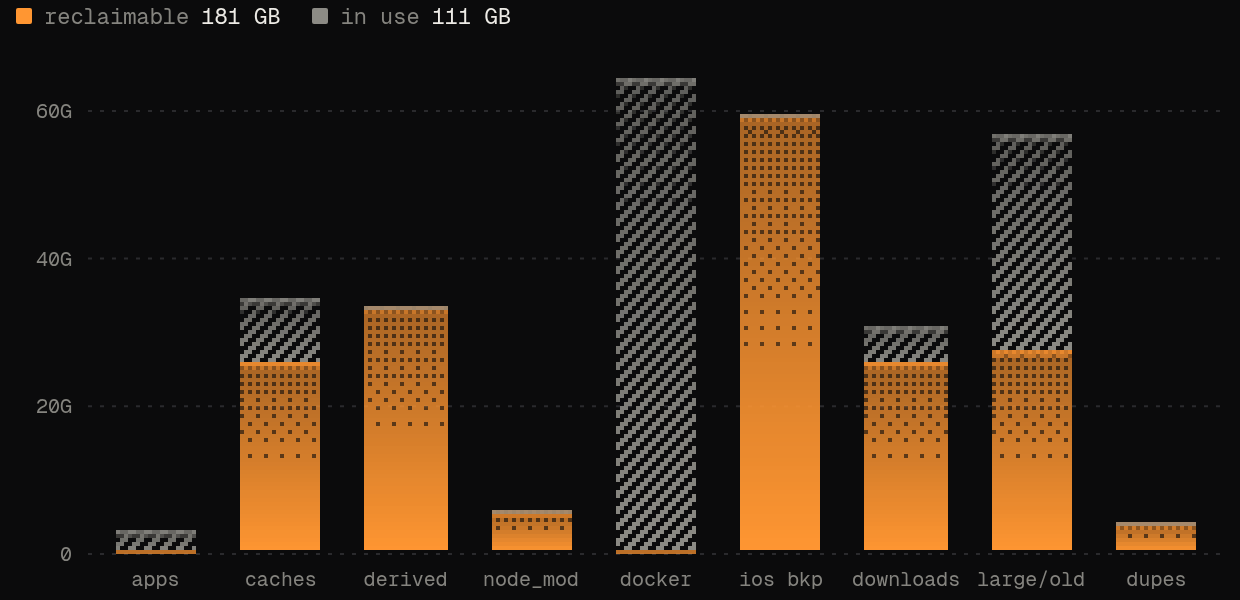
Click a bar to filter the suggestions to caches, DerivedData, node_modules, downloads, old files, backups or duplicates.
- 05 Confirm
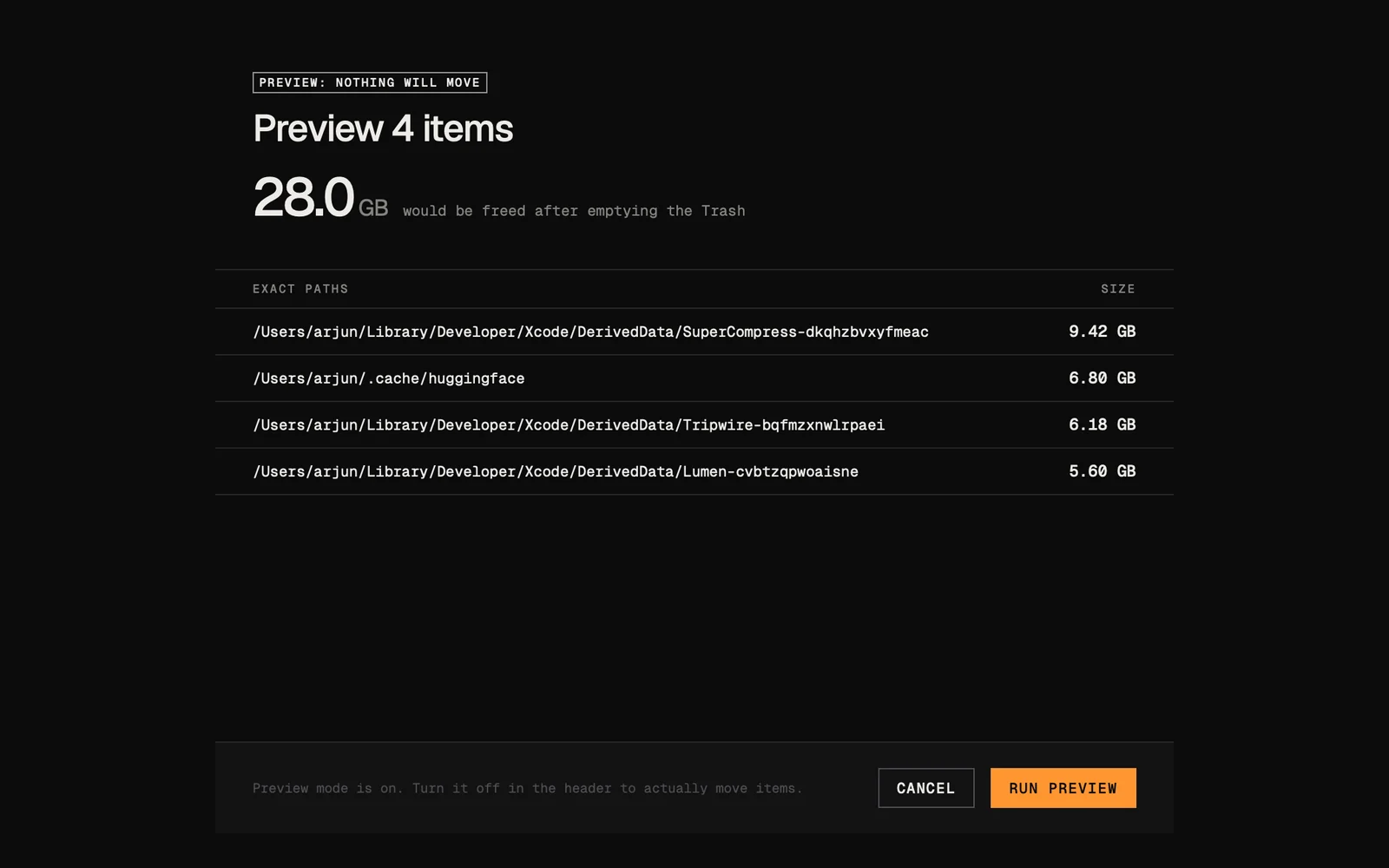
See every path before anything moves.
Nothing is pre-selected. The sheet lists each exact path, its size and the total. Preview mode is on when Silt opens, so the first run only shows what would happen.
- 06 Refuse
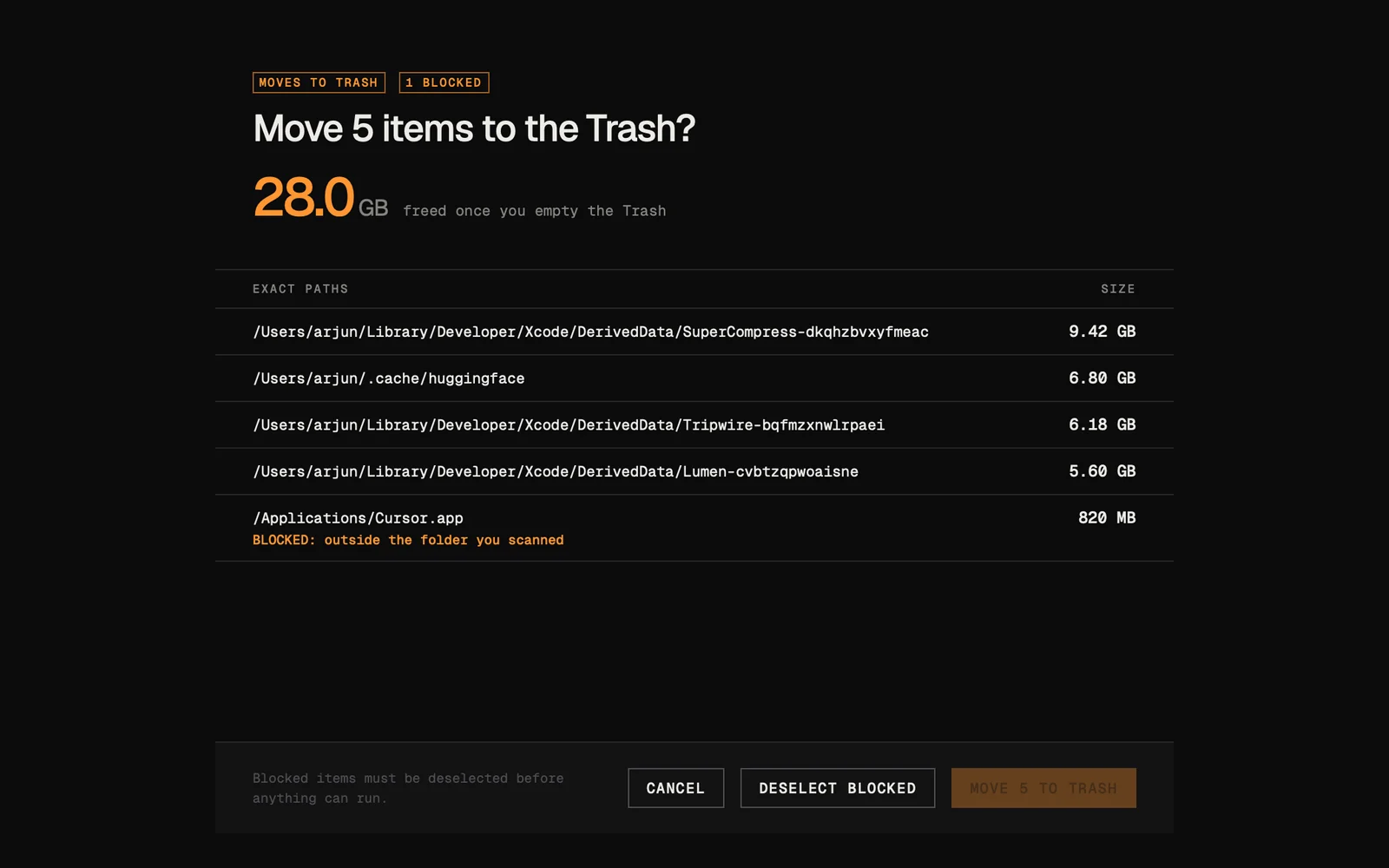
Unsafe batches are refused whole.
If one item is outside the folder you chose, or is a system folder or a running app, the whole batch is blocked until you deselect it.
A map of what is really there.
Sizing rulesThe map is a two-ring sunburst. The inner ring is the folder you are in, the outer ring is what each of those folders holds. Click a wedge to go inside it, click the centre to go back up.
Sizes are the bytes a file actually takes on disk, not its nominal length. Hard links count once. APFS clones are recognised, so reclaimable totals never count blocks that are shared with another file.
- Sizing
- Allocated bytes on disk
- Hard links
- Counted once
- APFS clones
- Private size used for reclaimable totals
- Symlinks
- Never followed
- Other volumes
- Skipped
- Unreadable folders
- Listed, never fatal
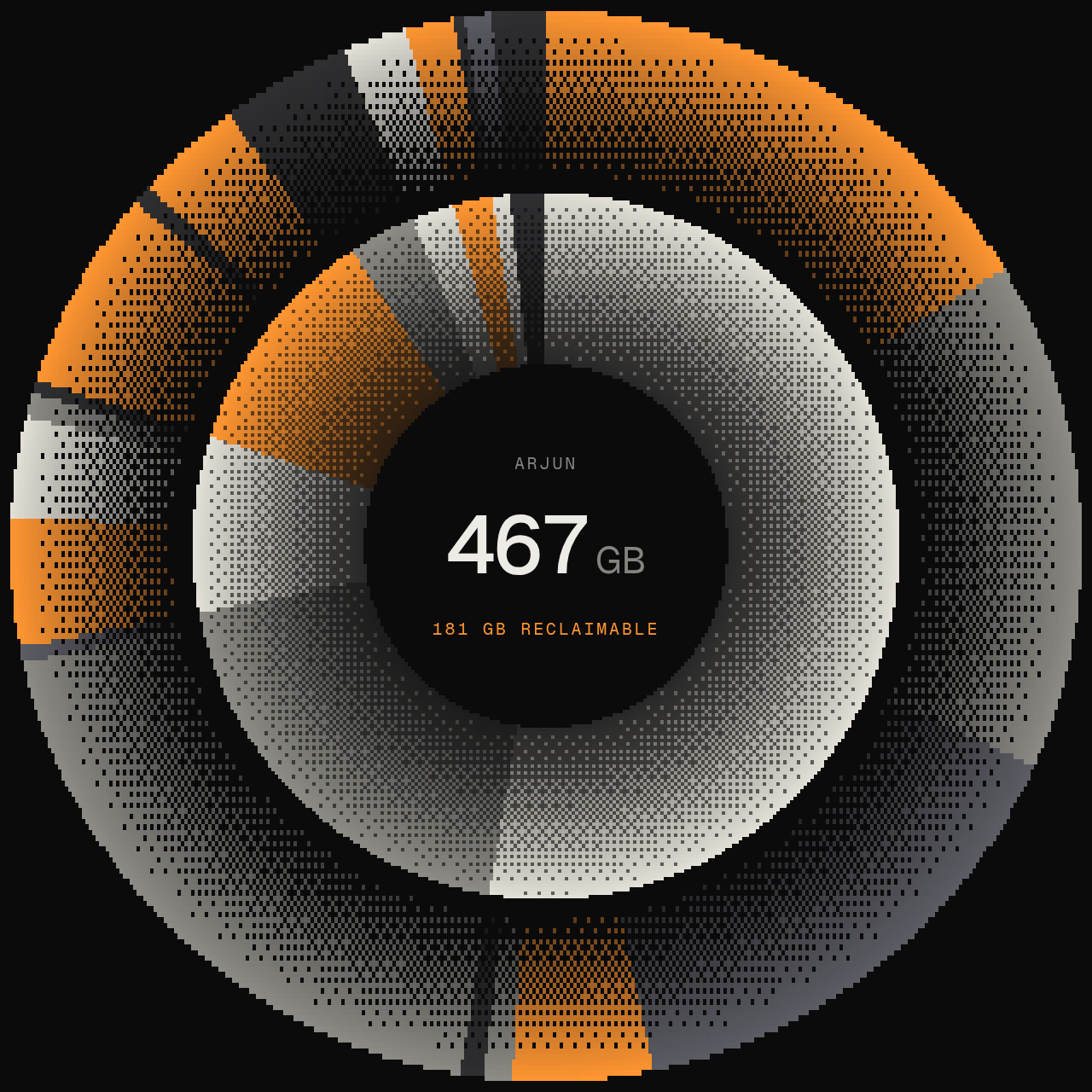
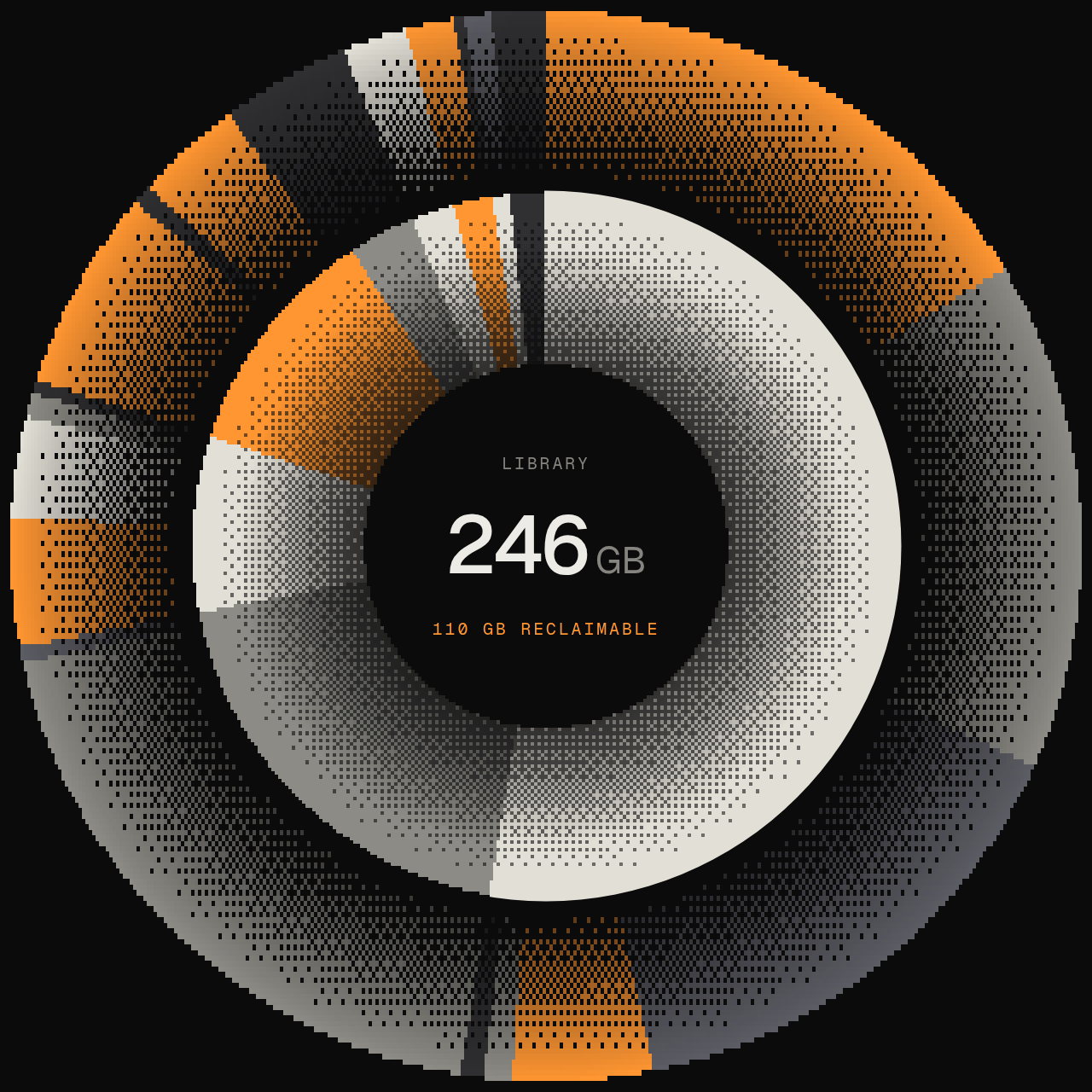
Fig. 02. The map, from the sample scan. Hover it for the wedge readout.
Inner ring: folders. Outer ring: what is inside them. Orange: at least half reclaimable. Grey dither: in use.
Reclaimable, by kind.
CategoriesEach bar shows how much of a category could go against how much is in use. Click a bar to narrow the list to just those items.
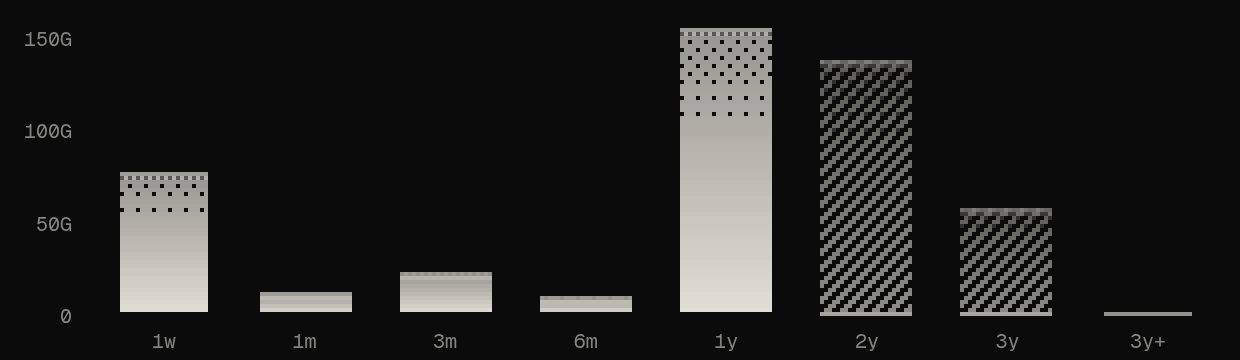
A second chart groups everything by when it was last modified, so the files you forgot about stand out.
| Category | Treated as |
|---|---|
| Caches | Safe: rebuilt when needed |
| Xcode DerivedData | Safe: rebuilt when needed |
| node_modules | Safe: reinstall with your package manager |
| Downloads | Review |
| Large and old files | Review |
| iOS backups | Review |
| Duplicates | Review: the oldest copy is kept |
| Docker disk image | Advice only: clean it up from Docker |
Trash only. Always.
Guard railsSilt has exactly one way to remove anything: moving it to the Trash, where Finder can put it back.
Nothing is pre-selected. You tick each item, then a confirmation sheet lists every exact path, its size and the total before anything moves. Preview mode is on when Silt opens, so the first run of any cleanup only shows what would happen. Turn it off in the header when you are ready.
- Refuses anything outside the folder you chose, and that folder itself
- Refuses system folders such as /System, /Library and /usr
- Refuses your home folder, ~/Library and their top-level folders
- Refuses running apps and anything inside them
- Refuses the whole batch if any one item is blocked
- Checks every item again immediately before it moves
Nothing leaves your Mac.
PrivacySilt is fully local. It makes no network requests at all: no analytics, no crash reporting, no update check and no account.
The charts are drawn by a page bundled inside the app, and a content security policy blocks it from loading anything remote.
- Sends
- Nothing
- Reads
- File names, sizes and dates in the folder you choose. To spot duplicates it reads and hashes large files on your Mac.
- Writes
- Nothing, except moving the items you confirm to the Trash
- Permissions
- Full Disk Access is optional. Without it Silt skips protected folders and lists them.
- This website
- No analytics or tracking cookies. Payment is handled by Stripe.
Buy once.
One-time$9
Secure payment through Stripe. You get the download straight after paying. Full refund within 14 days of purchase, no questions asked. Email arjunkshah21@gmail.com with your receipt.
Installing
- Unzip the download and drag Silt into Applications.
- Silt is not signed with an Apple Developer ID yet, so macOS warns the first time. Right-click Silt, choose Open, then Open again. See the FAQ for macOS 15.
- Optionally give Silt Full Disk Access when the start screen offers it.
Questions.
FAQmacOS says Silt can't be opened. How do I install it?
Silt is ad-hoc signed and not yet notarized by Apple, so Gatekeeper stops the first launch. On macOS 13 and 14, right-click (or Control-click) Silt in Applications, choose Open, then click Open in the dialog. You only do this once.
On macOS 15 and later, double-click Silt once and dismiss the warning, then open System Settings, go to Privacy & Security, scroll down and click Open Anyway next to Silt.
What are the system requirements?
macOS 13 Ventura or later, on an Apple Silicon or Intel Mac. The download is a single universal app.
How do I get updates?
Silt does not check for updates or update itself. Reopen the download page you reached after paying (it is worth bookmarking): it always serves the latest version. Quit Silt, replace it in Applications and open it again. If you gave Silt Full Disk Access, you may need to turn it off and on again for the new copy.
Can Silt delete something important?
Silt never deletes. It can only move items you have ticked and confirmed to the Trash, and it refuses system folders, your home and Library folders, running apps and anything outside the folder you chose. Until you empty the Trash, Finder's Put Back restores anything.
Why does Silt ask for Full Disk Access?
macOS hides Mail, Messages, Safari and parts of ~/Library from apps unless you allow it. Silt works without it: those folders are skipped and listed under Not read, so the totals are honest about what was left out.
Does Silt send anything anywhere?
No. Silt makes no network requests. See Privacy above for exactly what it reads.
What is your refund policy?
Full refund within 14 days of purchase, no questions asked. Email arjunkshah21@gmail.com with your receipt.
Who draws the charts?
Every chart is drawn by dither-kit by grim (@grimcodes), an MIT-licensed library for ordered-dither charts. The full licence text is in Silt's About window.